RUB docs
Param sequencer
Per-step parameter lanes, Draw mode, Blend, lane tabs, and how panel knobs mix with sequence overrides.
Param Seq is RUB’s automation lane system: each pattern can hold several parameter sequences that write values step by step. Use it for filter moves, mix rides, Tune gestures, FX toggles — anything in the parameter catalog marked Lane = yes.
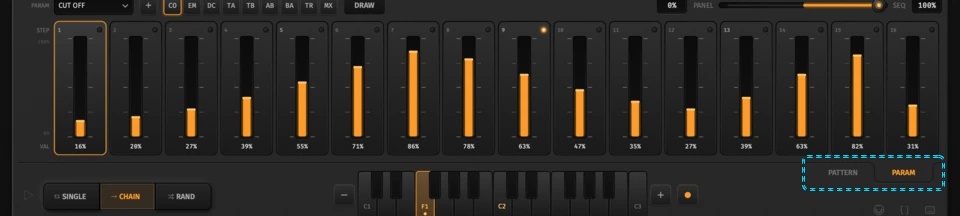
Enter Param view with Tab, the Param ear, or the Param tab on the homepage tour.
What a lane is
A lane is one ParamId on one pattern: 16 step values plus an “active” bit per step. Values use the same real units as the panel (see Parameters).
- Written steps store a level
- Unset steps hold the last written level (latch) — they are not “zero”
- A lane can be disabled (muted) without deleting its data
Patterns with any installed lane count as occupied (glow) even if the note grid is empty.
Lane chrome
Picker and add
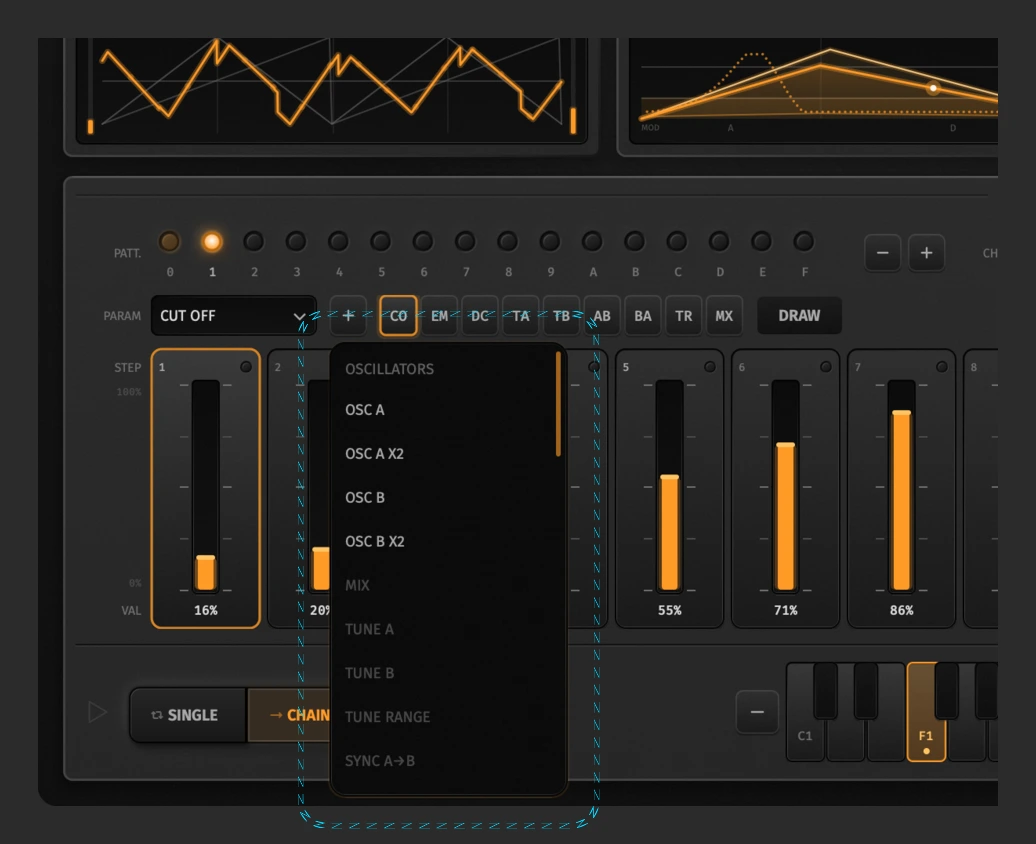
| Control | Role |
|---|---|
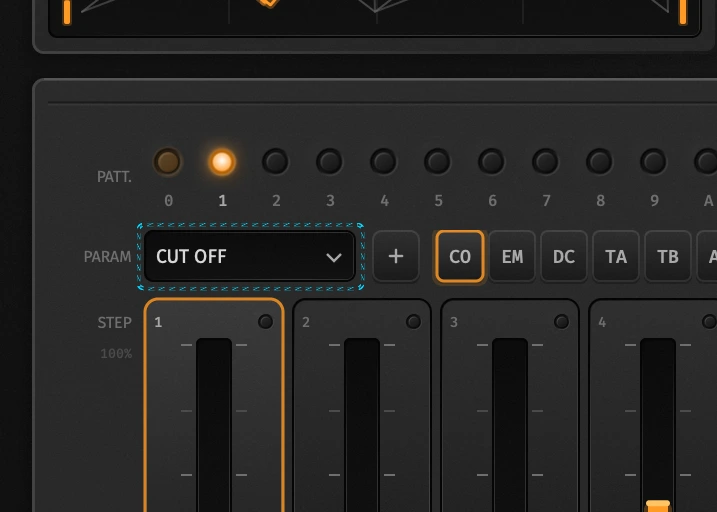
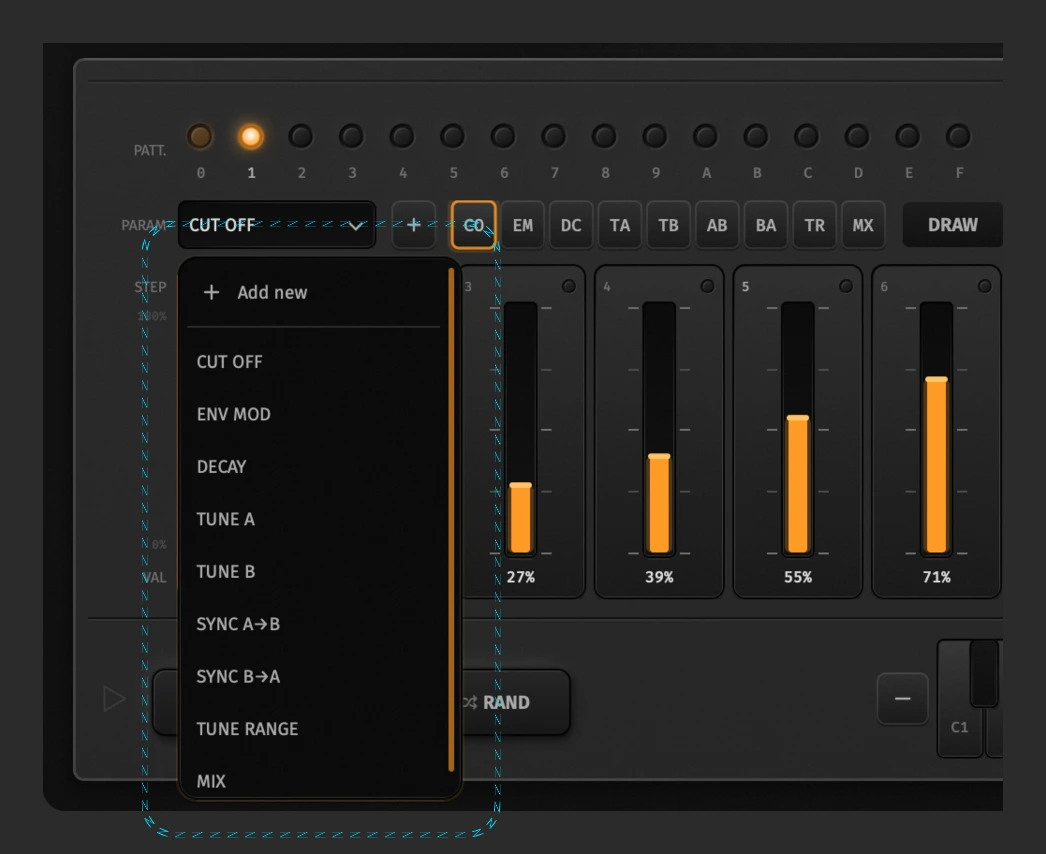
| Lane picker | Choose which installed lane you are editing |
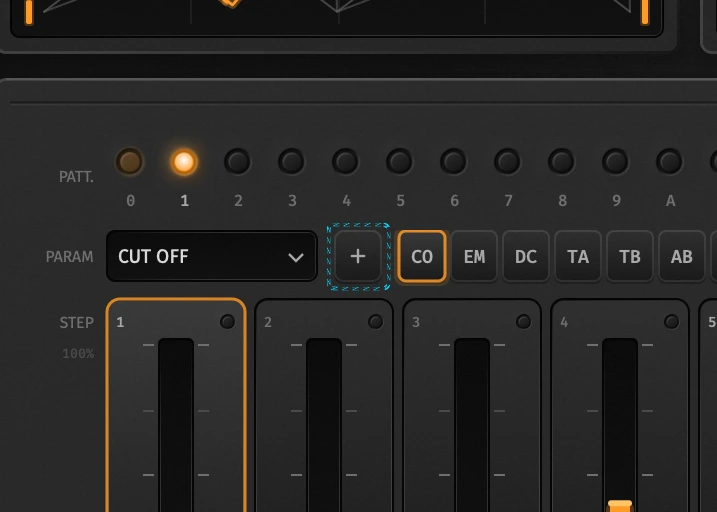
| + | Add another sequenceable parameter (blocked when the pattern is full or the param is already present) |
BPM and Lane Blend themselves are not lane targets (tempo / blend are song-level). Delay Sync is also excluded from lanes.
Tabs
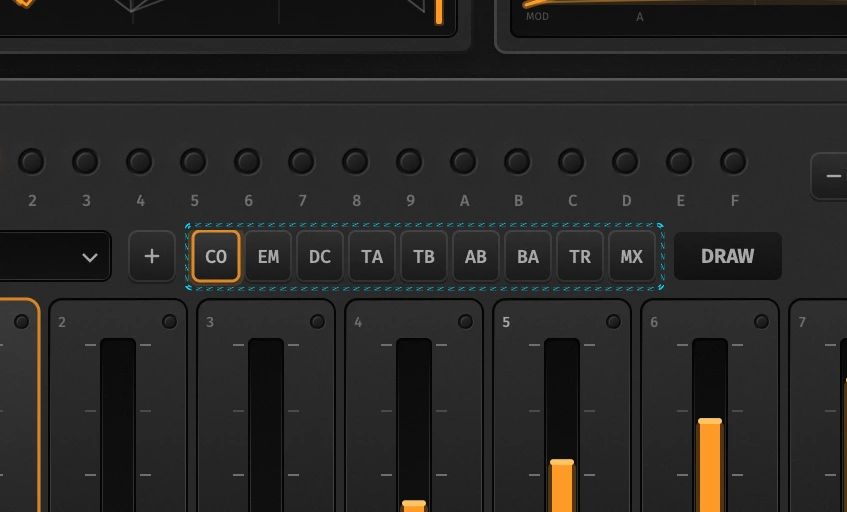
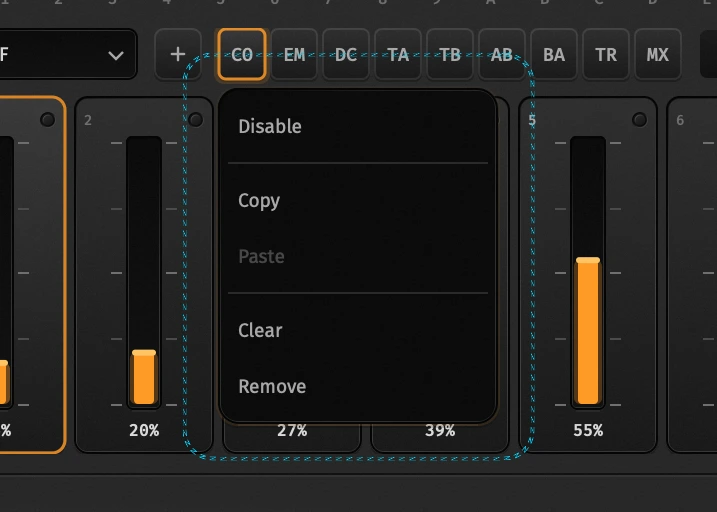
Each installed lane gets a tab. Right-click a tab:
| Menu | Effect |
|---|---|
| Enable / Disable | Mute the lane while keeping values |
| Clear | Wipe all step writes on that lane |
| Remove | Free the slot entirely |
Draw
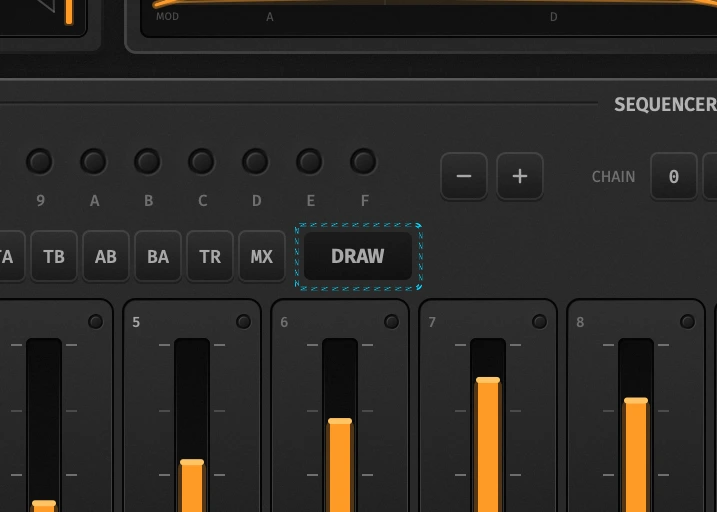
Toggle Draw, then click-drag across the bars to paint levels in one stroke. Turn Draw off to click individual steps or open the inline editor.
Step bars
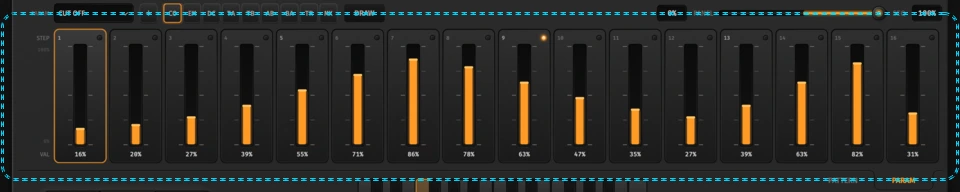
| Action | How |
|---|---|
| Write a step | Click a bar (or drag in Draw mode) |
| Nudge level | ↑ / ↓ (Shift = ×10) |
| Clear step | Del / Backspace |
| Inline edit | Double-click / edit readout where offered |
Scale depends on the parameter:
- Continuous knobs use their normal range
- Mix reads as OSC A ↔ B
- On/off and some bipolar params (e.g. Tune) use a mid-origin display
While playing, automatable panel knobs show the live lane overlay so you can see sequence vs panel at a glance.
Blend
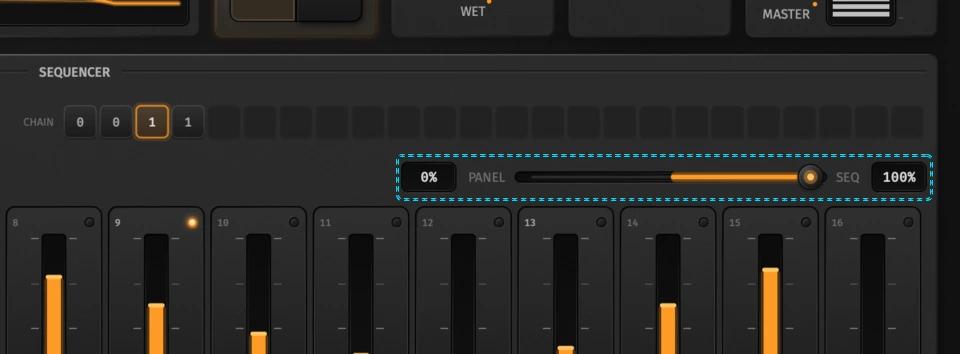
Blend (0…1, default full seq) crossfades:
- PANEL (left) — respect faceplate / MIDI knob positions
- SEQ (right) — lean on Param Seq writes
It appears when the current pattern has lanes. Right-click Blend to MIDI-map it. lane_blend is stored in the song JSON document.
Clipboard and patterns
In Param view, Cmd/Ctrl+C / X / V copy, cut, and paste lanes for the selected pattern (not notes). Pattern-menu Param section offers the same. Cmd/Ctrl+D still duplicates the whole pattern (notes + lanes) into the next empty slot.
Right-click a pattern LED for Transpose (notes), note clipboard, param clipboard, or Clear all.
Workflow tips
- Add Cutoff or Env Mod lanes first — filter motion is the classic Param Seq move.
- Keep Blend mid-way while designing so you can still grab the panel knob.
- Disable a lane to A/B a sequence without losing it.
- Dump the song with Song JSON if you want an AI to author
lanesarrays for you.
Related
- Oscillators — Tune / Mix lanes and sync
- Sequencer — notes, accent, slide, chain, capture
- Parameters — which
id_strvalues are lane-capable - MIDI map — perform with CC while lanes run
- Panel overview — faceplate map